“Your System Is Infected With 3 Viruses” on Android? What to Do
A “your system is infected with 3 viruses” warning on Android is almost always a browser scare page or an unwanted website notification — not a real virus detection. Don't tap its button or call its number. Close the page and check your notification settings yourself.
By George Featherstone·AI-assisted draft, reviewed and edited by George Featherstone.
A warning inside a webpage or unexpected notification is not proof that Android or Chrome detected three viruses. Do not tap its cleanup button, call a number, or install the app it recommends. The warning may be a browser scare page, a website notification, or a sign that an unwanted app needs investigation.
What to do right now
- Do not interact with the warning. Close the tab or browser window. Do not call, pay, download, or grant access through it.
- Notice where it appears. Is it only in one browser tab, arriving as a site notification, or appearing repeatedly outside the browser?
- Do not install a “cleaner” from the alert. If you need a security check, use Google Play Protect and trusted device settings.
- Ask for help before resetting the phone if you entered a password, card number, or installed an unfamiliar app.
Separate the three likely causes
If it is only a browser tab
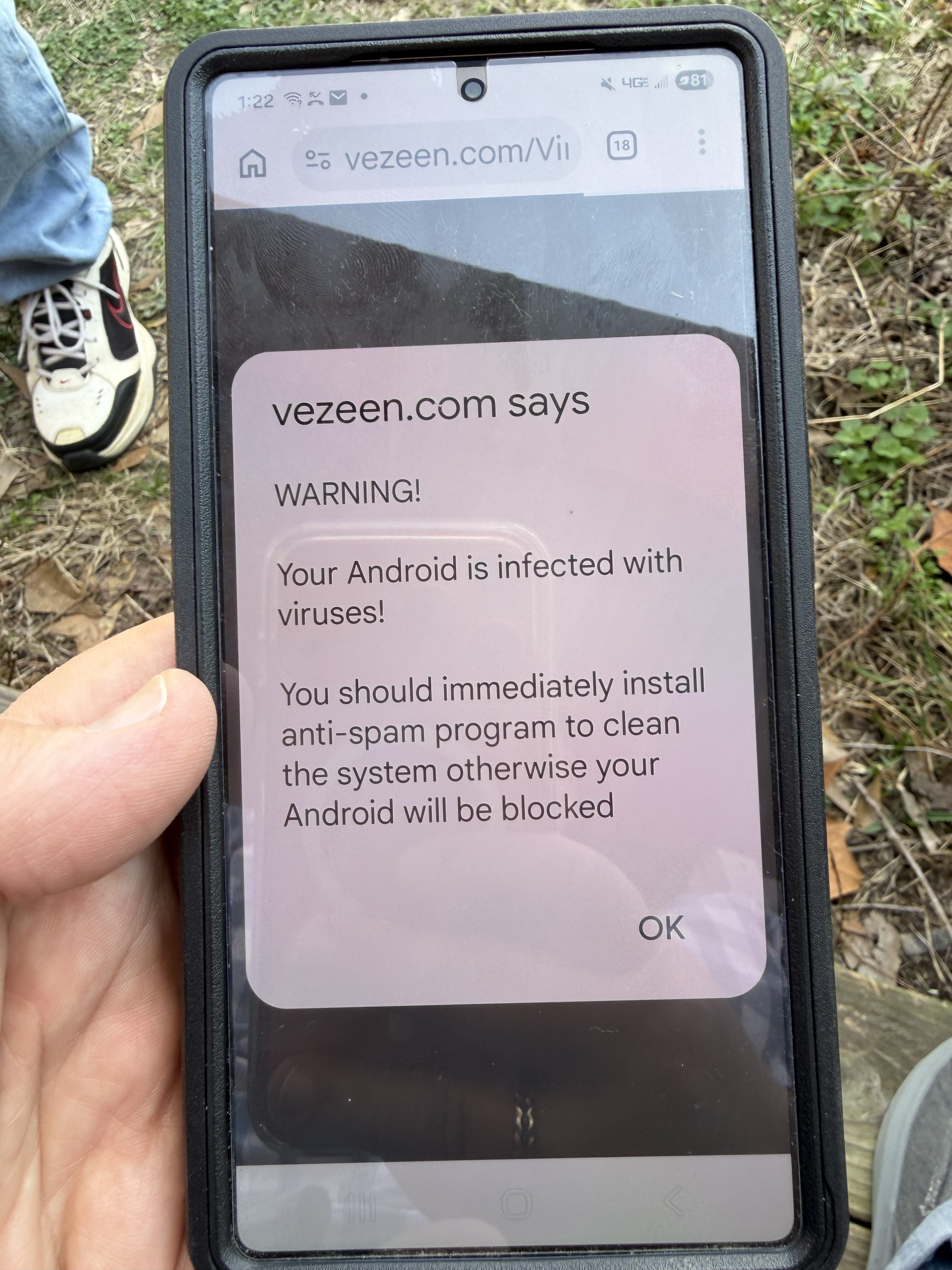
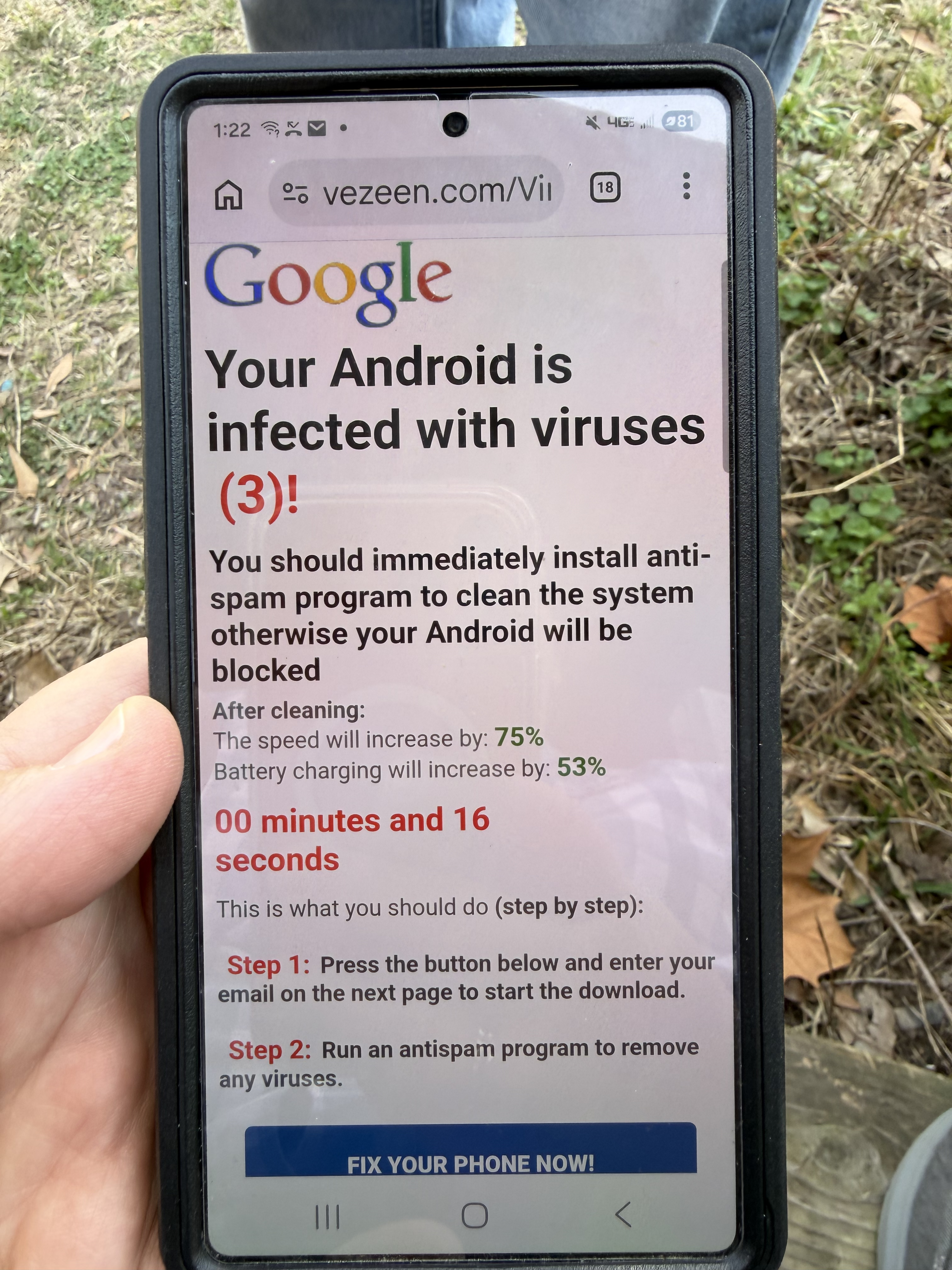
Close the tab and avoid returning to the page. A webpage can display a convincing “your system is infected with 3 viruses” message without having scanned the phone. If the warning came from a suspicious link, do not follow its instructions.
If it is an unwanted website notification
In Chrome on Android, open the site, tap Page info → Permissions → Notifications, and turn notifications off. Google’s guidance explains that unwanted site notifications can be disabled this way.
If it keeps happening outside the browser
Investigate recently downloaded apps. Repeated pop-ups, redirects, or a changed homepage can be signs of unwanted software, but symptoms alone do not identify exactly what happened.
Use Safe Mode as a diagnostic step
Google recommends Safe Mode when unwanted ads, pop-ups, or malware-like behavior may be connected to an app. In Safe Mode, remove recently downloaded apps one at a time, restart normally after each removal, and check whether the behavior changes.
On most modern Android phones, you enter Safe Mode by pressing and holding the power button, then pressing and holding Power off until a Safe Mode prompt appears and tapping it. (The exact steps vary slightly by device — if the prompt doesn't appear, search your phone model + "Safe Mode" for the right sequence.) In Safe Mode the words "Safe mode" appear in a corner of the screen and third-party apps stay disabled.
In this incident, the pop-ups stopped in Safe Mode. That narrowed the likely cause to a third-party app; it did not prove that the operating system was uncompromised or provide a complete security assessment.
How to turn off unwanted site notifications
This is the single most common real cause behind repeated "you have 3 viruses" warnings — a website you once allowed to send notifications, now abusing that permission to push scare messages. To fix it in Chrome on Android: open the three-dot menu, tap Settings → Site settings → Notifications, and block any site you don't recognize. In the "Allowed" list, tap the offending site and choose Remove or Block.
Check Play Protect
Open the Google Play Store, tap your profile picture, then Play Protect → Settings. Make sure Scan apps with Play Protect is on. If you are still seeing unexpected behavior, pause before installing anything else and ask a trusted technician or your device manufacturer for help.
The original incident
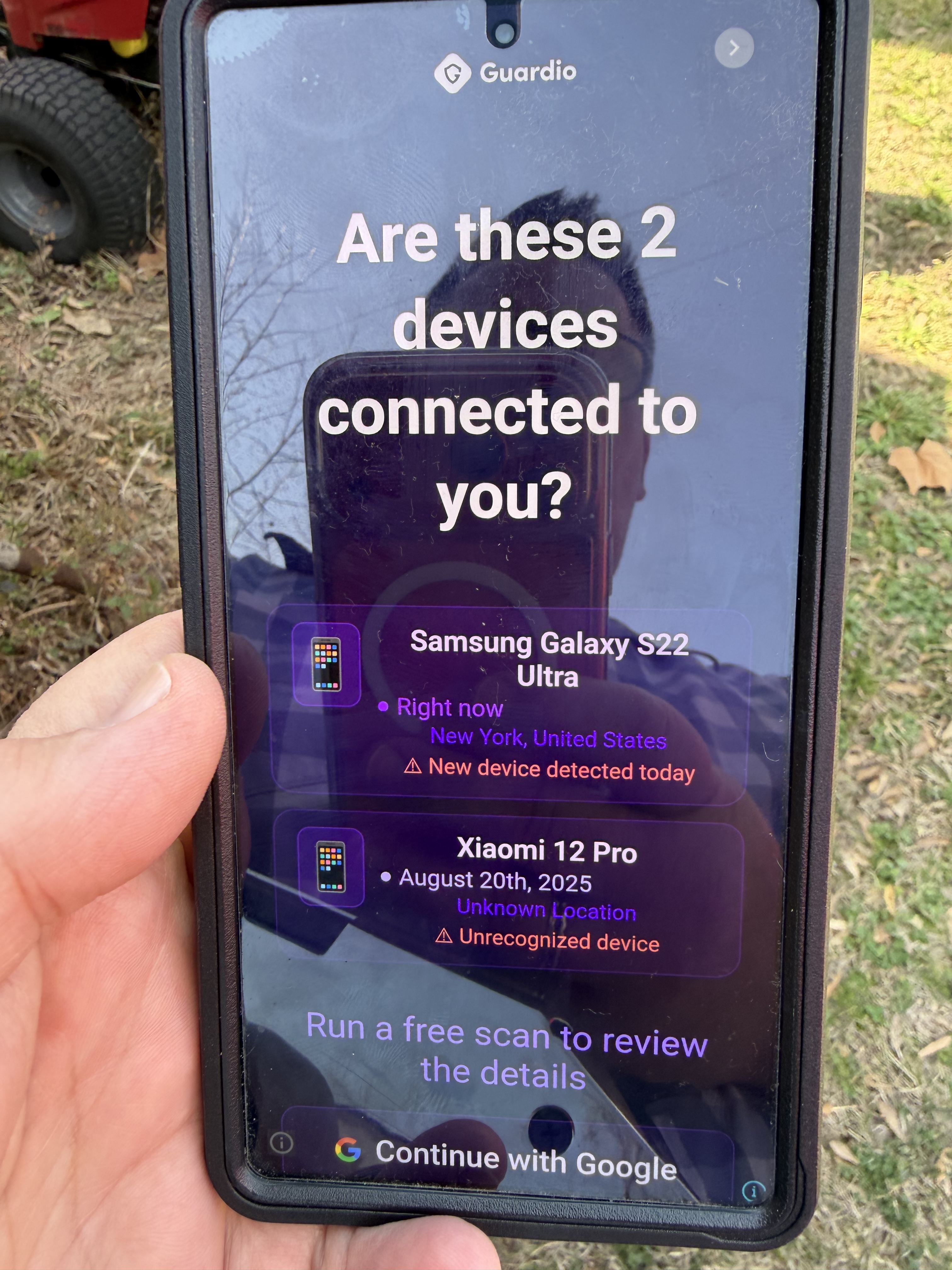
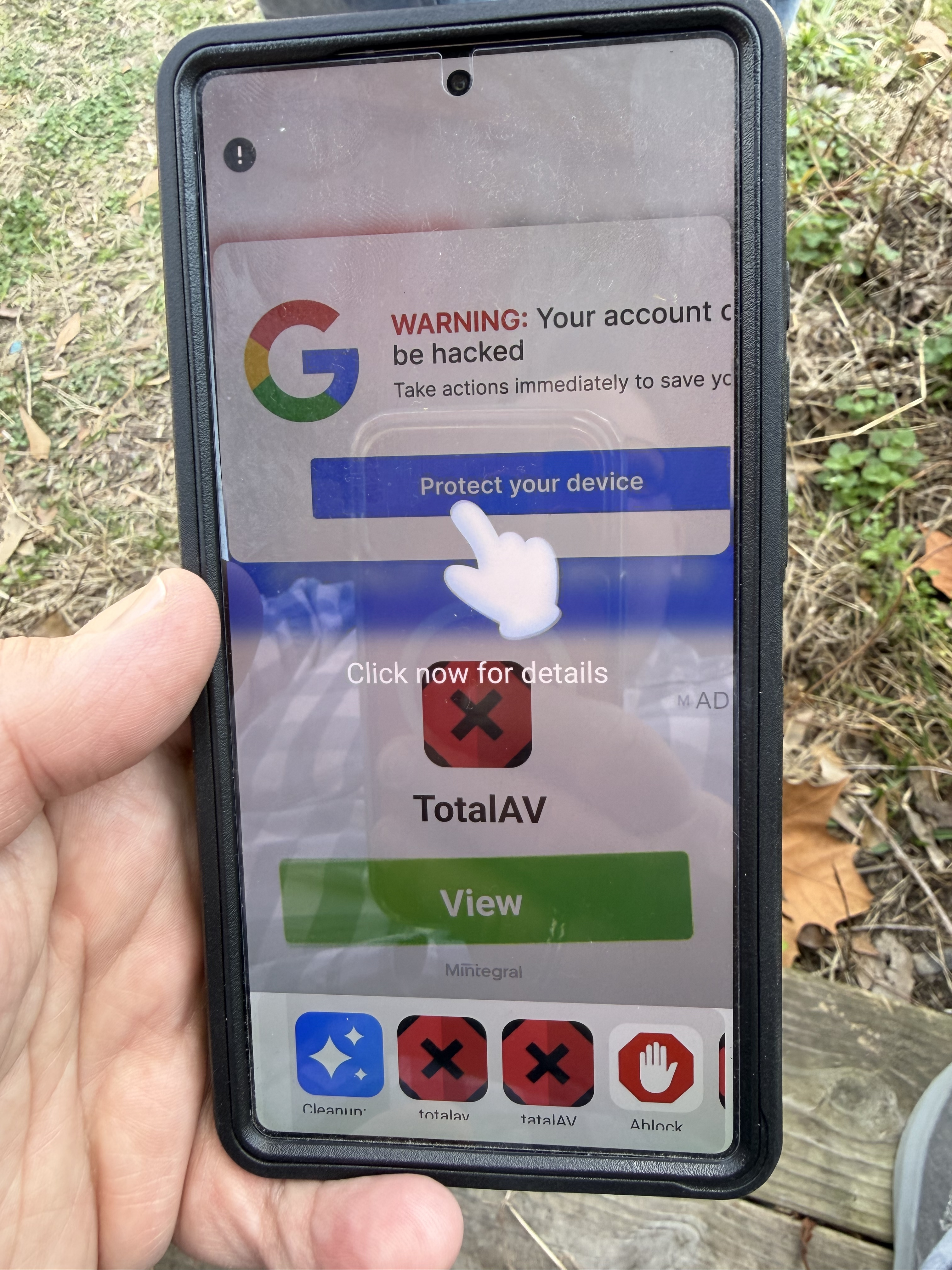
A friend handed me his Android phone and said, “Something is seriously wrong.” The screen showed fake alerts saying, “Your Android is infected with viruses (3),” along with Google-like branding, countdowns, and “protect now” buttons.
We booted into Safe Mode and the pop-ups stopped immediately. We then reviewed recently installed apps, removed suspicious entries, restarted the phone, and confirmed that normal behavior returned. The whole process took about 15 minutes.
What I observed firsthand was a scareware/adware-style episode that stopped after app cleanup. That experience is useful as an example, not as proof that every similar warning is harmless or that every phone is clean.
What we did not do
- Install random antivirus apps from the pop-up
- Enter payment information
- Click “Clean now”
- Reset the phone before investigating
Android virus-warning FAQ
Does “Chrome found 3 viruses” mean Chrome scanned my phone?
Not necessarily. Text inside a webpage is not the same as a result from Android settings or Play Protect. Close the page and investigate the source safely.
What if “your system is infected with 3 viruses” keeps appearing?
Check for unwanted site notifications, then use Safe Mode to investigate recently downloaded apps. Continued symptoms are a reason to seek help, not a reason to trust the warning’s cleanup button.
Can ScamBomb diagnose malware?
No. ScamBomb can help assess the wording or screenshot of a suspicious warning, but it cannot diagnose malware or certify that an Android phone is clean.
Check the warning before you click
ScamBomb can help assess a suspicious message or screenshot in plain English. It is a second opinion—not a malware scanner.
Try ScamBomb Free →